
Free and open source for Windows
Review and clean up thousands of videos without opening them one by one.
VideoCull is a video organizer for large local collections. It turns each file into a strip of sampled frames, so you can see what is inside, make a decision, and move to the next clip.
- Runs locally
- No account
- No admin rights required
Default review keys
- KKeepLeave the file in place
- DDeleteMark for the final batch
- SSkipDecide another time

01See several moments at onceFrames are sampled across the file, not just from the opening second.
02Narrow the folder firstFilter by status, rating, favorites, size, duration, compatibility, or duplicates.
03Decide from the gridKeep or mark obvious files without starting playback.
What it is for
A video organizer for collections that have outgrown File Explorer.
A filename and one poster frame stop working once a folder holds hundreds of clips called VID_0412.mp4 or download (3).mkv. VideoCull does not ask you to build a media library first. Point it at the folders you already have, see what each file actually contains, and decide what stays.
Your folder structure is left alone. The collection gets organized through decisions: Keep, Delete, Skip, ratings, favorites, and bookmarks, followed by a confirmed cleanup.
- Downloaded video folders
- Years of saved clips where the filenames stopped meaning anything long ago.
- Old archives and backups
- Copies of copies spread across backup folders, often with the same video under several names.
- External drives
- Load several folders or drives into one session and review them together.
- Screen recordings
- Recordings that look identical in a file list but differ once a few frames are visible.
- Camera footage
- Phone, dashcam, drone, and action-camera clips with sequential names. Sort camera footage by what happened.
- Mixed media folders
- Folders that were never organized. Sort by size, duration, or resolution to find what takes the most space.
The normal session
A folder goes in. A reviewed set comes out.
Nothing complicated sits between opening the folder and making the first decision.
- 01
Scan
Open one or more folders. VideoCull finds the video files and starts generating thumbnail strips.
- 02
Triage
Use the grid for quick calls. Search, sort, group, and filter until the useful queue is visible.
- 03
Review
Open uncertain clips in the focused player. Scrub, rate, favorite, bookmark, or decide with the keyboard.
- 04
Confirm
Check the complete Delete set and total size, then send the batch to the Windows Recycle Bin when possible.
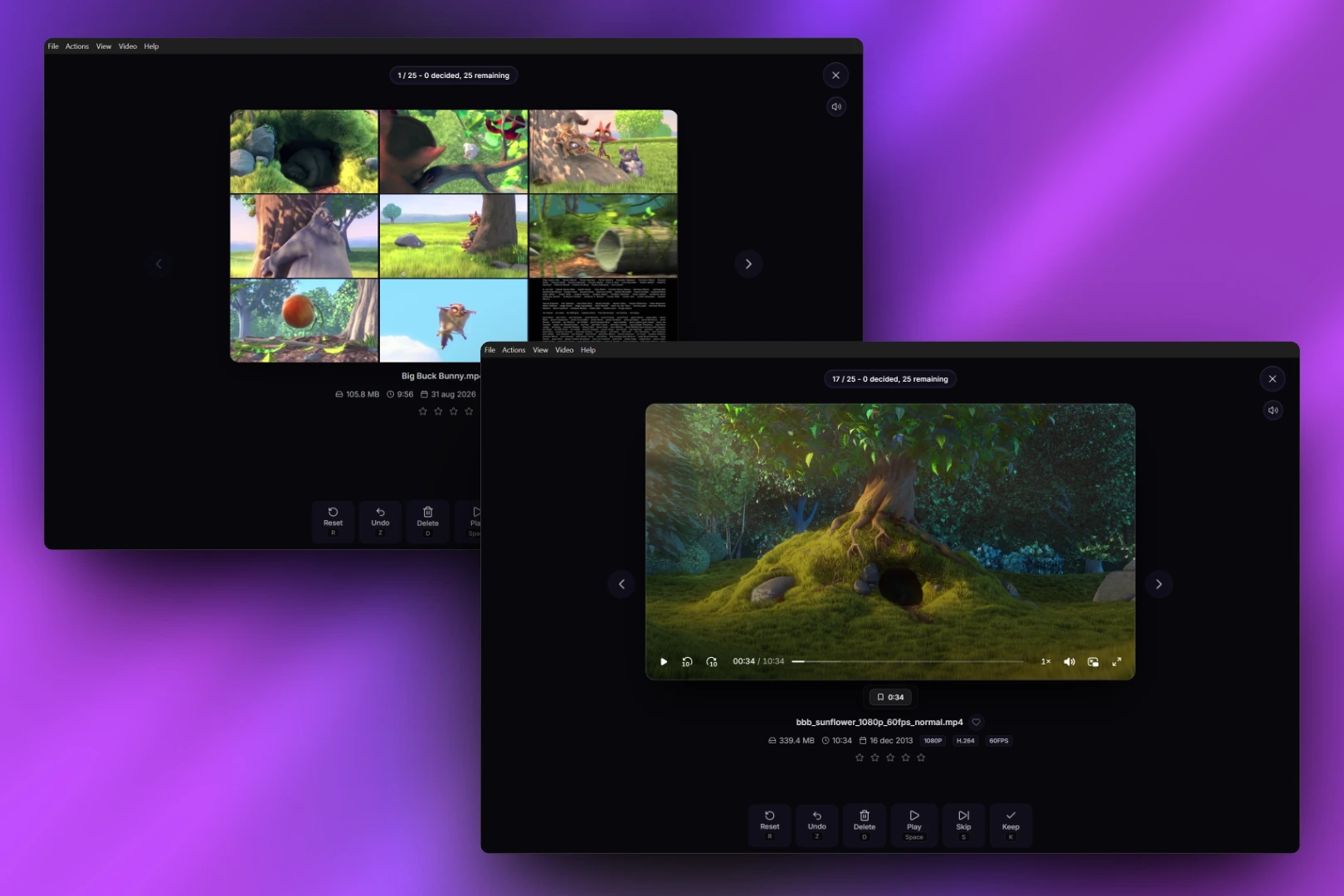
Focused review
When the frames are not enough, play the clip without losing your place.
Review mode keeps the current queue around one video. Playback, scrubbing, metadata, ratings, favorites, and bookmarks stay within reach.

Duplicate review
Compare likely copies before either file is marked.
Exact files and visually similar candidates appear in groups. VideoCull suggests a keeper from resolution, bitrate, duration, frame rate, and file size. You can change it or dismiss the match.
- Exact and visual matching
- Manual keeper override
- Saved “not a match” pairs
For longer sessions
The small controls are there because large folders need them.
- Search and filter
- Filename, path, status, rating, favorites, file size, duration, compatibility, and duplicates.
- Sort and group
- Name, date, size, duration, rating, resolution, frame rate, and source folder.
- Rate and remember
- Ratings, favorites, bookmarks, statuses, metadata, and thumbnails survive rescans through the local cache.
- Work in batches
- Select a range of cards, then apply Keep, Delete, Skip, Reset, or thumbnail regeneration together.
- Open difficult formats
- Files that cannot play inside the app can still be scanned and opened in the default system player.
- Export the result
- Generate an HTML report for all loaded videos or the current filtered set.
Local and deliberate
Marking Delete does not delete the file.
Keep, Delete, Skip, and Reset are review states stored locally. Files only leave disk after you run the final delete action and confirm the full batch.
VideoCull uses the Windows Recycle Bin first. If that fails for a file, it asks before using a permanent fallback.
Explore VideoCull workflows
Start from the job you need to get done.
- Review large video folders Work through a big folder from the grid, then open only the clips that need playback.
- Find duplicate videos Group exact copies and visually similar files, compare them, and choose which one to keep.
- Cull video collections What video culling means and how a first review pass works on local folders.
- Sort camera footage Review dashcam, drone, action-camera, and phone clips by what happened in them.
Questions
Frequently asked questions.
- What is VideoCull?
- A free, open-source Windows app for reviewing large local video collections. It shows several sampled frames from every file, lets you mark Keep, Delete, or Skip from the keyboard, and finds duplicate videos.
- Is VideoCull a video organizer?
- Yes, in the sense of working out what a collection contains and what should stay. It does not rename files or move them into new folders. Organizing happens through review decisions, ratings, favorites, bookmarks, filters, and removal of the files you no longer want.
- Can it handle large downloaded video collections?
- Yes. Open one or more folders, including subfolders, and start reviewing while thumbnails are still being generated. Progress is kept in a local cache, so a later rescan continues where you stopped.
- Can I review videos from several folders or drives?
- Yes. One session can combine several folders. The cache can live in one central location, on each drive, or next to the source files.
- Does VideoCull upload videos or thumbnails?
- No. Videos, thumbnails, and review data stay on your computer, and no account is needed. The privacy policy lists the only network access: optional update checks.
- Can VideoCull find duplicate and similar videos?
- Yes. It detects byte-identical copies and compares sampled frames to find visually similar files, such as the same video under another name or in another encode. See how the duplicate video finder works.
- Does it delete duplicates automatically?
- No. Duplicate review suggests a keeper and can mark the other copies Delete, but files stay on disk until you confirm the final delete batch. VideoCull uses the Windows Recycle Bin first.
Windows desktop application
Start with one folder.
FFmpeg and FFprobe are bundled. Choose Microsoft Store or install the direct download without administrator rights.